Calibration coefficients
See also the pertinent user guides.
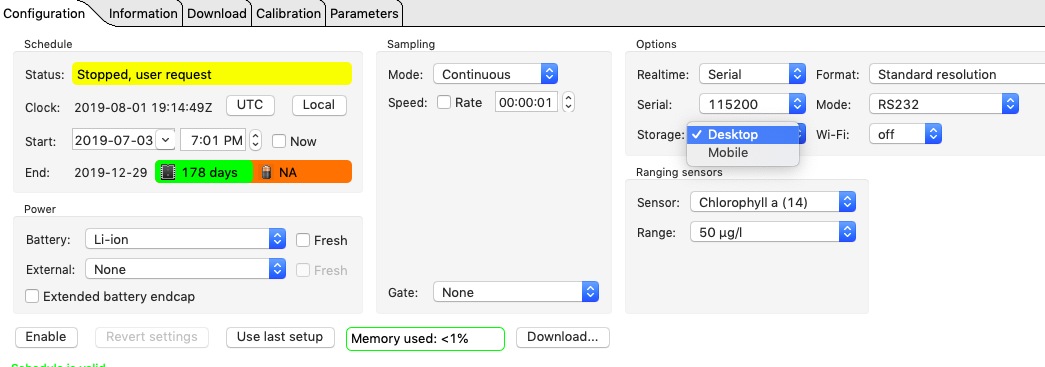
Calibration coefficients are stored in both the instrument and in the RSK file. The RSK file will only show the calibration section of the Channels tab if the RSK file is created in the Desktop storage format. It is advisable to always record your data in the Desktop format, unless you need to visualize your data on a mobile device. You can switch between the formats by changing Storage in the Options section under the Configuration tab.
|
You cannot change between Desktop and Mobile storage formats during the same deployment. Stop your deployment, change the setting, then start a new deployment. |
Viewing and editing the calibration coefficients
There are two types of calibration coefficients. The main coefficients ("C" type) are always visible and can always be edited.
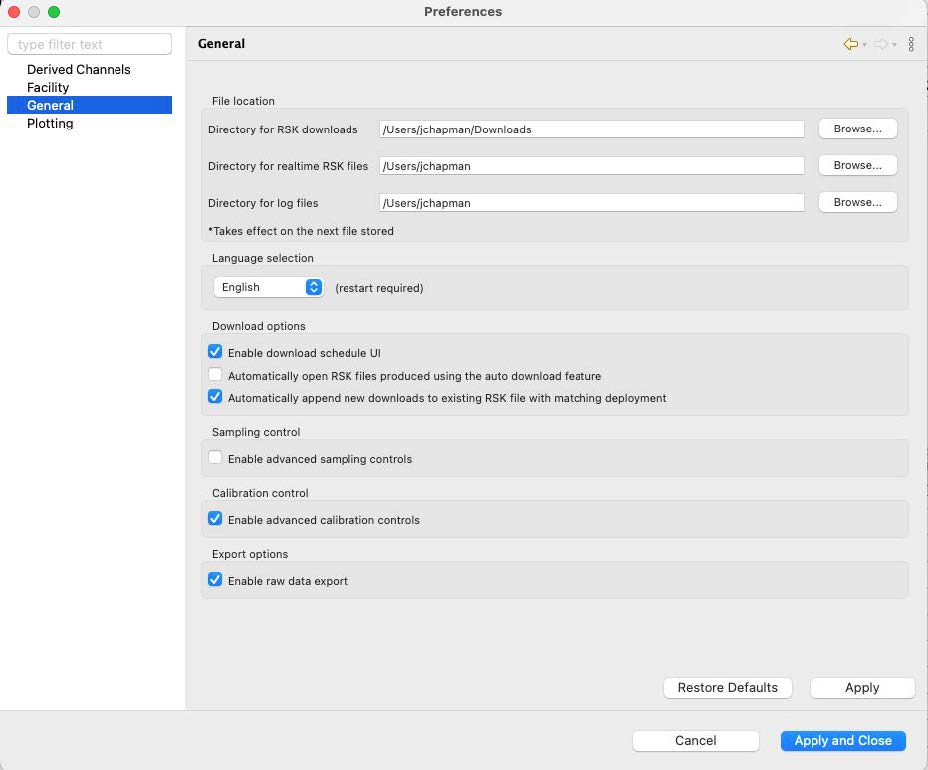
The dependent coefficients ("X" type) should only be changed if instructed by RBR. They are hidden by default, but can be enabled. Go to Preferences > General > Calibration control and select Enable advanced calibration controls.
Changing coefficients in the RSK file
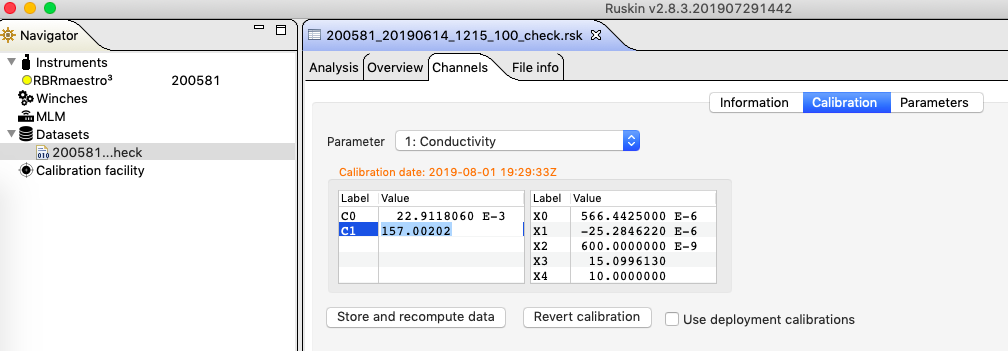
The coefficients stored in the RSK file can be changed and the RSK file can be recomputed with these new coefficients from within Ruskin. Each channel and coefficient will need to be edited individually.
To edit the calibration coefficients and recompute the dataset, open your RSK file. Go to Channels > Calibration.
|
Only datasets in the Desktop storage format can be recalibrated. If you do not see the Calibration option under Channels, this dataset is not in the Desktop format. |
Refer to the Datasets section (Channels subsection) in applicable user guides for the steps required to change the coefficients.
Use Store and recompute data to recalculate the dataset.
If you have made an error, revert back to the previous set of coefficients (those being the factory coefficients, or the deployment coefficients if any changes were made and saved before) by selecting the "Revert calibration" button.
|
The original factory coefficients are shipped with your instrument when it is first manufactured and after any recalibration. If you cannot find them, contact [email protected] for a digital copy. |
Changing coefficients on the instrument
The coefficients stored on the instrument can be changed. Typically, one will either need to enter the coefficients that are on the original calibration certificate or copy them from an RSK file.
Refer to the Calibration section in applicable user guides for the steps required for editing your calibration coefficients on the instrument.
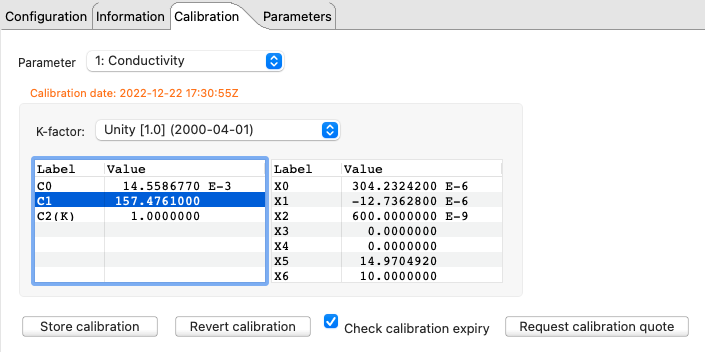
Make sure to click Store calibration to save the new values. Use Revert calibration to recover to the original coefficients if you have not already saved your changes to the instrument.
Copying coefficients from an RSK file to the instrument
-
Select the RSK file from which you wish to copy the coefficients from.
-
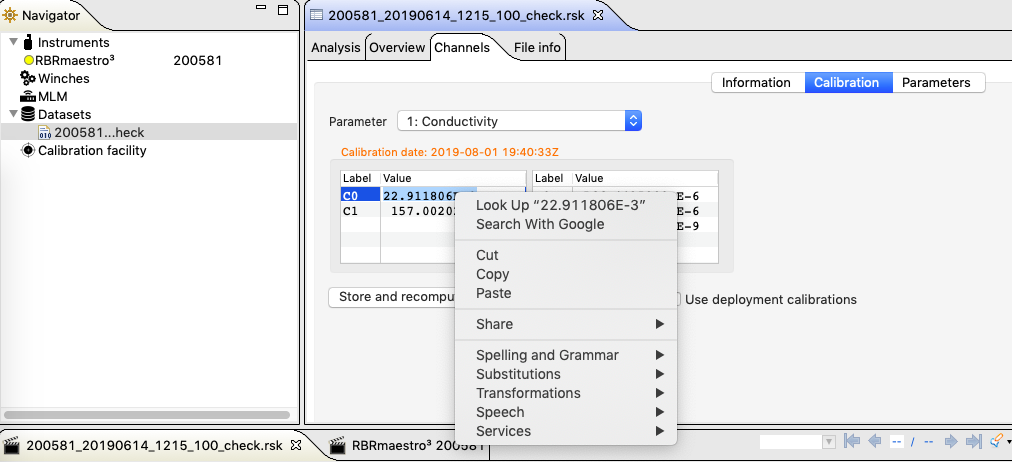
Select the coefficient in the RSK file from the Calibration section of the Channels tab. Right-click and select copy.
+
-
Select the instrument that you wish to copy the coefficient to.
-
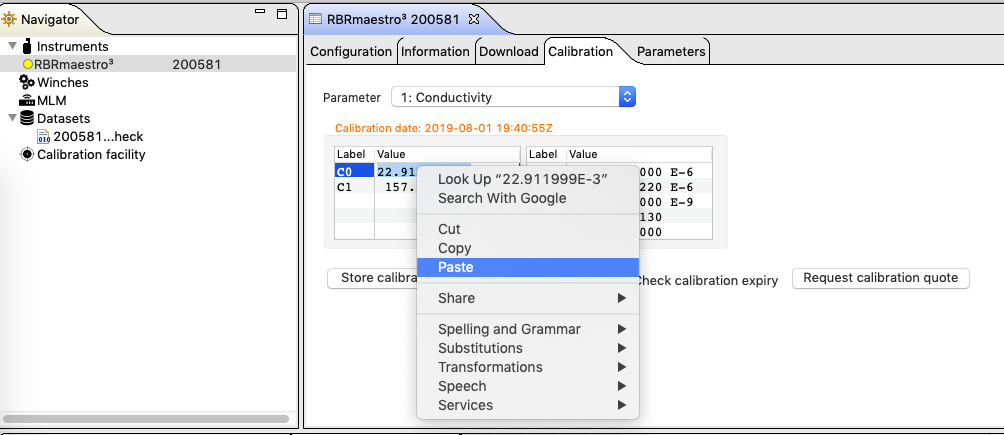
Select the coefficient for the parameter you will be updating and click paste.
+
-
Repeat for all "C" and "X" coefficients that need to be transferred.
-
Once all have been transferred, select Store calibration under the Calibration tab.
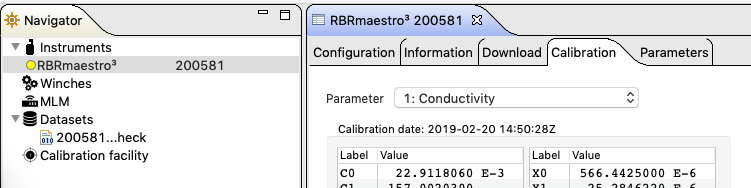
The calibration date will be updated with today’s date when the the Store calibration button is pressed. For example, the calibrations in the instrument below were stored on "2019-02-20 14:50:28".
+
-
Doublecheck that all coefficients have been transferred correctly.
|
If all the coefficients need to be transferred, it is more efficient to copy them from the RSK file to a text file, then copy the coefficient from the text file to the logger. This avoids switching tabs in Ruskin and reduces the chance of introducing an error. |