Wi-Fi troubleshooting
Generation3 instruments
All RBR Generation3 instruments (L3) come equipped with Wi-Fi capabilities and can be upgraded to have this feature in the field. See Ruskin User Guide: Standard Instruments³ or Ruskin Mobile Quick Start Guide to learn more about using the Wi-Fi module.
The L3 Wi-Fi feature does not require a module like the Generation2 instruments as the module is built into the board. If the instrument has the Wi-Fi feature enabled, it will come with the Wi-Fi turned on.
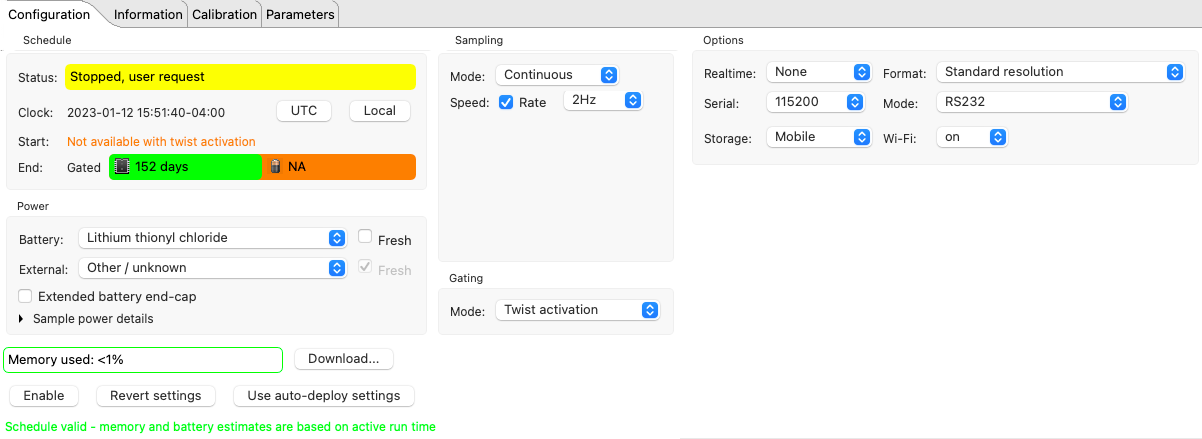
If it is not, go to Configuration > Options.
-
Under Wi-Fi, select on to allow your instrument to use the Wi-Fi module
-
Under Storage, select Mobile for the storage format compatible with tracking and charting
Then, go to Gating and select Twist activation.
|
The Wi-Fi broadcasts for 60 seconds after it is twist-activated or after completing a profile deeper than 2 meters. Once the instrument is connected to a mobile device or computer, the Wi-Fi will stay on until disconnected. At all other times, the Wi-Fi is not on in order to save power. |
If the connection to Wi-Fi fails, try the following:
-
Keep the Wi-Fi signal close to what you are trying to connect to and away from other signals.
-
Try to connect to the instruments with another device. If you are currently using your computer to connect to the instruments, you could try connecting to the Ruskin mobile app on your phone.
|
In a populated and busy area, the Wi-FI connection might fail due to interference with other Wi-Fi signals. |
For Generation2 instruments (pre 2018), see Generation² Wi-Fi troubleshooting.