Connecting to instruments with RealTerm (Windows)
|
Before using RealTerm, always configure the instrument in Ruskin first, then follow the steps below. |
-
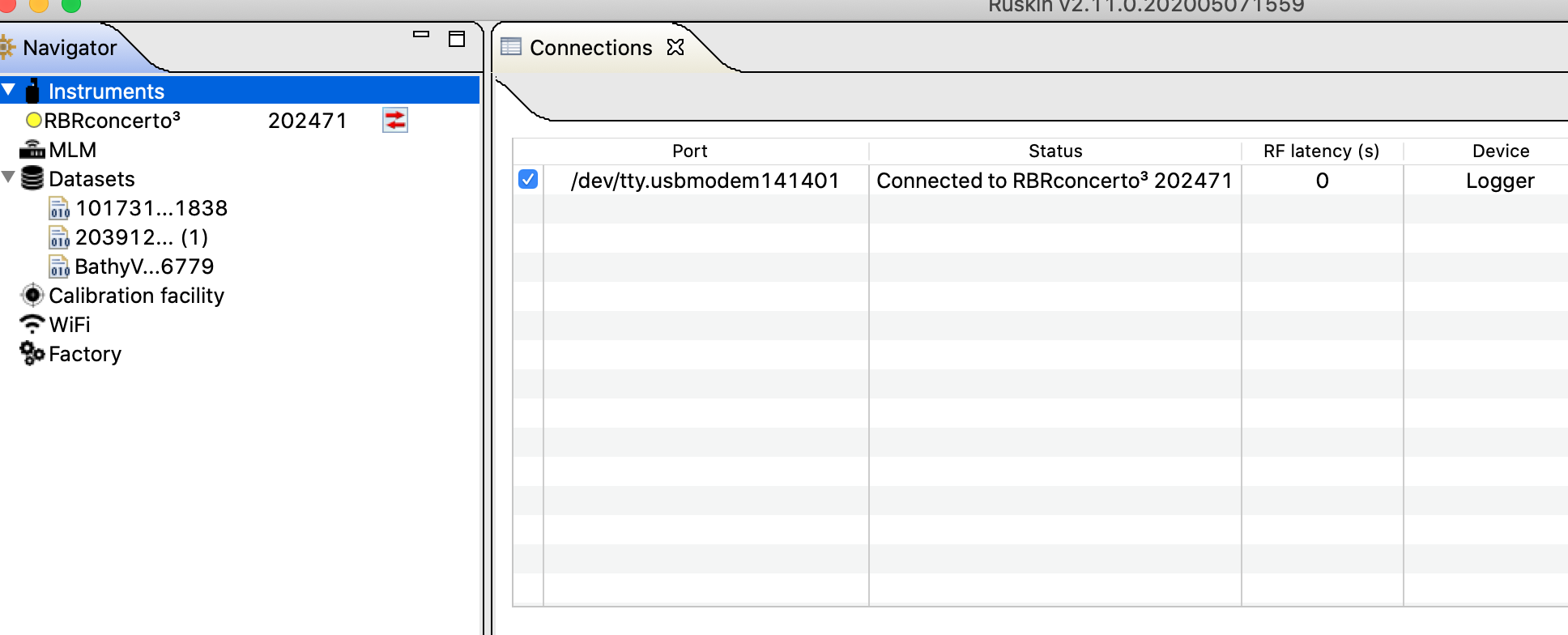
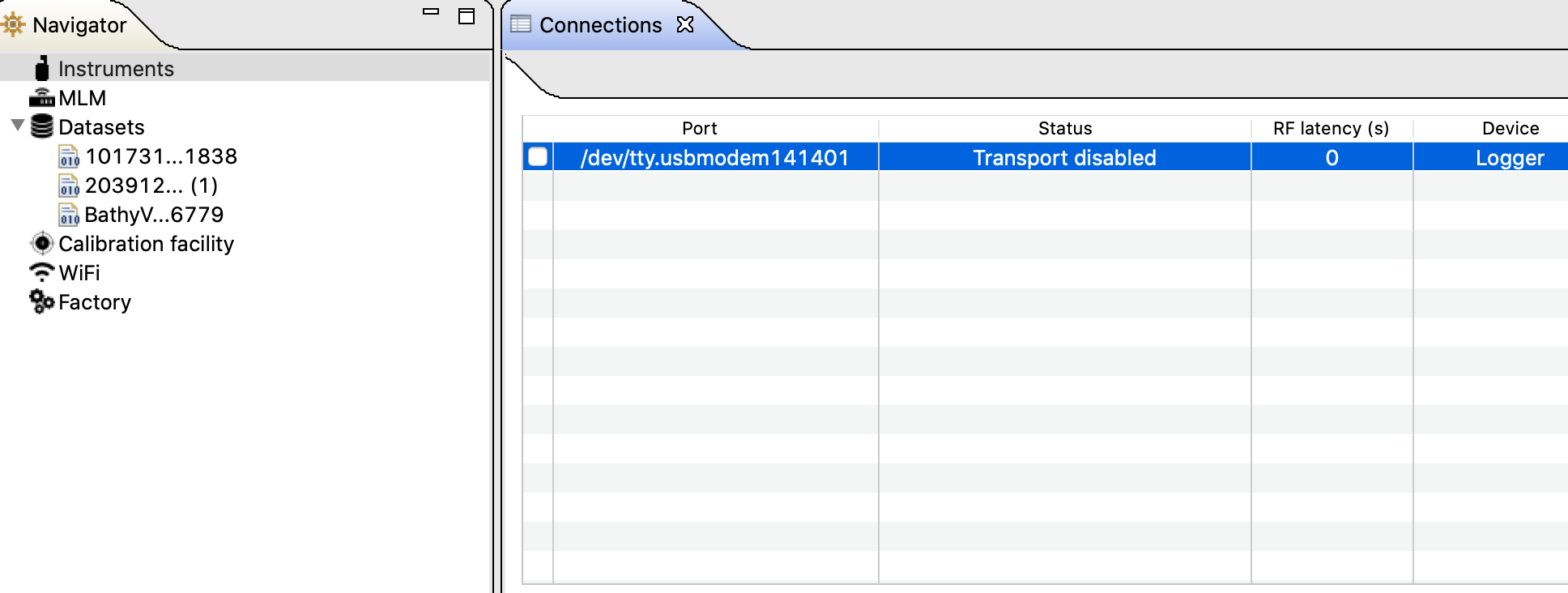
Deselect the port by clicking Instruments and unchecking the checkbox. This step is necessary because the instrument will not be able to connect to both Ruskin and CoolTerm simultaneously.
Please note there are other terminals available and they follow the same logic as the one referenced on this page.
As seen below, the RBRconcerto3 serial number 202471 is still connected to the port in the first image (port checked) and in the second image, the port has been deselected.
-
Open the RealTerm software (https://sourceforge.net/projects/realterm/).
-
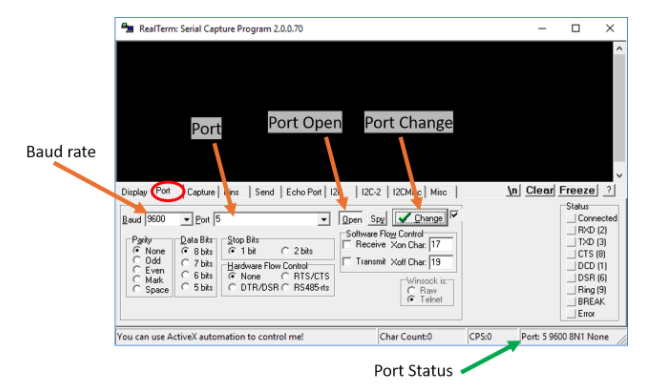
Go to the Port tab.
-
Select the same port which was deselected on Ruskin.
In the example here, it is Port 5. The baud rate selected in Real erm should match the one selected in Ruskin.
-
After making any changes to the Port tab, establish a connection on a COM port. You might need to click Open twice.
-
Update the information using the Change button. Note that clicking Change will work only after you establish the connection).
-
-
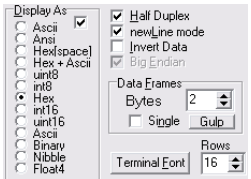
Go to the Display tab.
-
Ensure that the Half Duplex checkbox is selected (if you need to see what you have entered into the terminal).
-
Set Display As to ASCII.
-
-
Go to the Send tab to send ASCII commands to the instrument.
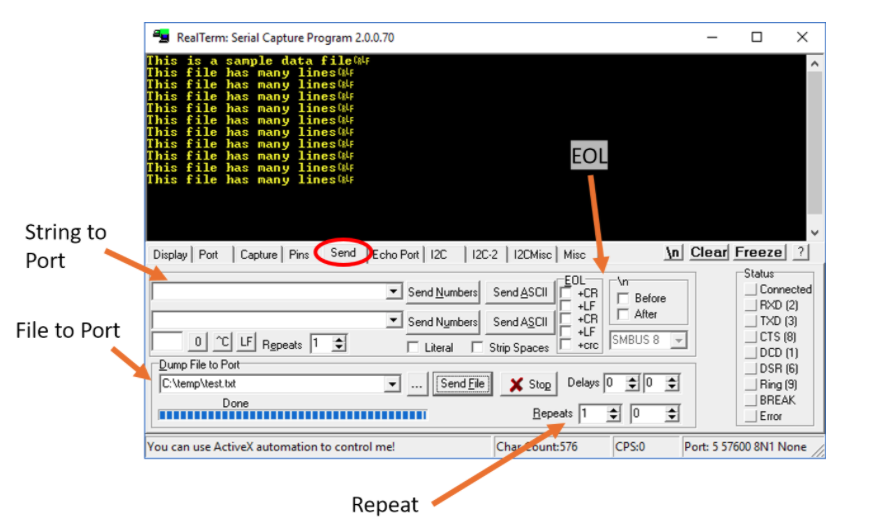
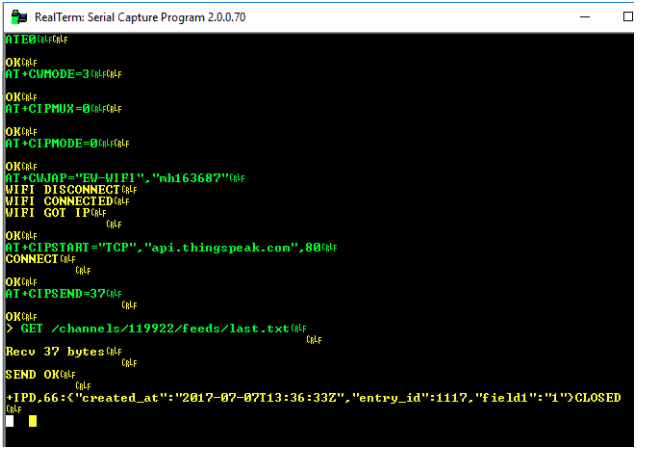
The commands sent are in green and the instrument will return in yellow.
References: